Server settings and scheduled tasks
Every tab of Server › Settings - globals, HUD settings, themes, reports and awards, translations, containers, debug, the scheduled tasks and patches - plus Discord, auth keys and the panic buttons.
For staffServer › Settings holds how your sim, its HUD and its background jobs behave. This guide goes through each tab, then the other Server pages. Most of it is set once when a sim starts and touched rarely after. Every change is recorded in the Master log.
Who can do what
| Page or tab | Look | Change |
|---|---|---|
| Globals, HUD settings, HUD themes, Themes, Containers, Translations | sim_settings or admin |
sim_settings |
| Reports & awards | the same, or edit_awards |
Report types: sim_settings. Award types: also edit_awards |
| Debug, Cron, Patches | Super Admin only | Super Admin only |
| Discord | discord_edit |
discord_edit |
| Auth Keys | admin or authkey_edit |
the same |
| Panic buttons | panic_economy or panic_server |
the matching one |
Super Admin can do everything. By default the Admin role can look at Settings, change award types, and use Discord, Auth Keys and Logs. See Groups, ranks and access.
Globals
A global is one named setting, such as web-title for your sim’s name on the website. The tab groups them by the start of their name: bank-, economy-, hud-, profile-, rp-, web- and so on.
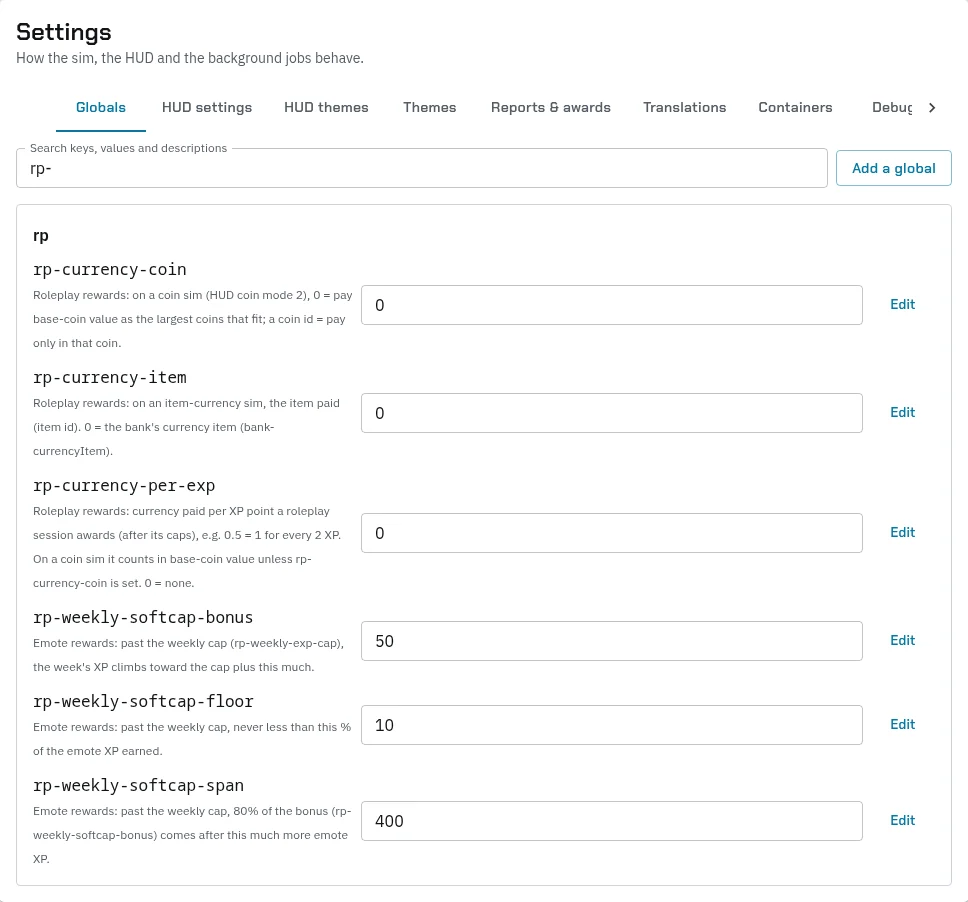
- Type in Search keys, values and descriptions to find one.
- Change a value in its box, then press Save, or Enter. Undo puts it back.
- Edit changes the key, the value and What it does. Don’t rename a key: the system reads globals by name, and a renamed one falls back to its default.
- Add a global adds one that isn’t listed yet. Many settings, such as the
rp-roleplay ones, work with a built-in default until you add them.
Some you’ll set early:
| Global | What it does |
|---|---|
web-title |
Your sim’s name on the website |
web-url |
Your website’s address, ending in / |
combat-defaultGameSystem |
The game system your sim plays by default |
hud-motd, hud-tosLink, hud-simRulesLink |
The message of the day, and links to your terms and rules |
profile-maxChars |
How many characters an account can have |
hud-levelSystem, hud-levelStats, profile-perkPicks |
How levelling works. See Levels and XP |
bank-enabled, economy-*, faction-tax |
The bank and the economy. See The economy |
rp-* |
Roleplay rewards. See Levels and XP |
Leave these alone:
ROOTFOLDERandDEEPFOLDERPATHtell the server where its code is.sim-partyNumber, and anything ending in-last-run, are kept by the system itself. The panic switches aren’t listed here: use the Panic buttons page.
HUD settings
The HUD’s own settings, each in a group. Pick a Group to see one, or search. A setting that isn’t at its default shows changed. Reset puts the default back, and its tooltip says what that is.
| Group | What it holds |
|---|---|
| Hud-Buttons | Which Home buttons show: Character, Fight, Inventory, Trade, Dice and so on |
| Hud-Bars-Top and Hud-Bar | The bars at the top of Home: what each shows and its formula |
| Hud-Bars-Bottom | The counters along the bottom of Home: Effects, Quests, Bounties, Events, Bank |
| Hud-Settings | Coin mode, the command and emote channels, the Home layout and the HUD’s scale |
| Char-Creation | Whether creation asks for a class and race, the points to spend, and the labels it uses |
| Hud-Color | The HUD’s colours |
| Hud-Combat | Healing and regeneration out of fights |
| Hud-Titler and Titler | The titler’s switches, and its PvP, rating, depth and intimacy lists |
The HUD look covers the look in full.
HUD themes and Themes
- HUD themes shows each theme folder with a preview. Set each one’s Accent and Panel colours, or leave them on Auto. The one marked Sim default is what the HUD shows before a player’s group picks another.
- Themes is your website’s look: which themes staff and players can pick, your sim’s default theme, accent colour and logo, what players may change about their own look, and your sim’s colours.
Reports & awards
Report types are the kinds of IC report players file. Award types are the kinds of award, each paying its Influence as XP to everyone on an approved award. Event kinds set which awards an event gives. A type switched off can’t be filed any more, but reports already filed keep it. You can only delete a type nothing uses. See Levels and XP and Running events.
Translations
The HUD’s words in another language. Pick a Language, then Translate a line, or Change one that’s already translated. Only lines still in English shows what’s left. A line’s {placeholders} must stay as they are, or it won’t save. New accounts start in sets the language new players get.
Containers
Every bank, shared container and ATM on your sim. New container adds one: give it a Name, a Kind and, if you like, an item needed to open it and how close players must be. Put the number it shows in the in-world container’s description. See Items and crafting.
Debug
Super Admin only. Each category of the server’s own log can be switched on, written to the error log or the database, kept to a number of entries, and set to warn Discord’s system-alerts group. Errors are on by default. The Debug log below shows the entries, with filters. Switch on cron_dispatcher while you check scheduled tasks are running.
Scheduled tasks
The Cron tab lists the tasks your server runs on its own. Super Admin only.
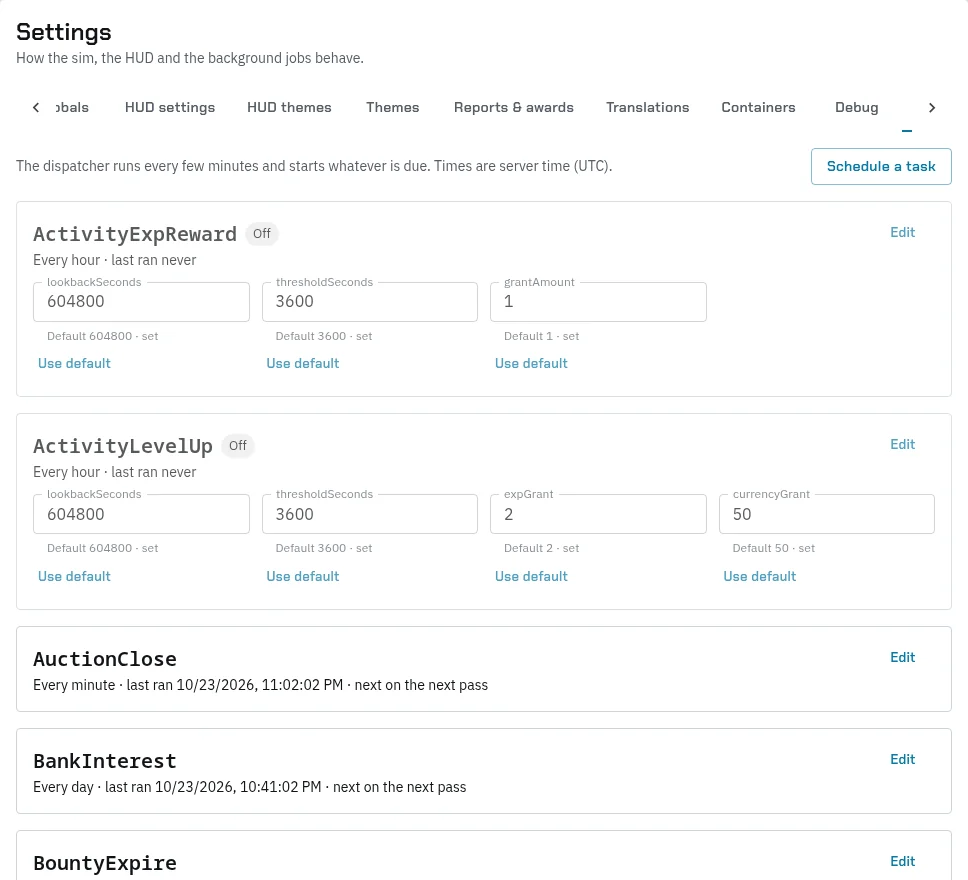
Each card shows how often the task runs, when it last ran and when it runs next. A task’s settings, if it has any, sit on its card: change one and press Save, or Use default. Run on next pass runs a task soon. Edit changes how often it runs, or switches it off. Schedule a task adds one: pick the Task, then Every (minutes) or Once a day at a time.
The server checks every minute and runs whatever is due. A task that fails tries again on the next check.
| Task | What it does | Usually runs | Needed for |
|---|---|---|---|
| AuctionClose | Ends auctions: sold to the top bid, or back to the seller | Every minute | The auction house |
| BankInterest | Pays or charges interest | Every day | The bank |
| BanTimer | Lifts timed bans when they end | Every 2 minutes | Timed bans |
| BountyExpire | Ends bounties past their end date | Every hour | The bounty board |
| CommunityProjects | Ends projects past their deadline | Every 5 minutes | Community projects |
| CraftComplete | Finishes timed crafts and starts the next waiting job | Every minute | Crafting |
| CraftOrderExpire | Ends crafting orders and refunds the payment | Every hour | Crafting orders |
| CronHealing | Heals HP and restores energy and mana out of fights | Every 2 minutes | Healing out of fights |
| EconomyExport | Builds the weekly economy export | Every day | The economy export |
| EconomyStabiliser | Measures the economy and adjusts prices | Every week | The economy stabiliser |
| EmoteRewards | Pays XP for roleplay scenes | Every 5 to 15 minutes | Roleplay XP |
| EnvLockdowns | Ends lockdowns from failed interactions | Every minute | Fail lockdowns |
| EventsTick | Starts planned events and ends them for approval | Every 5 minutes | Events |
| GeneratorFuel | Burns generator fuel and sets their power | Every minute | Fuelled generators |
| ItemUuid | Tidies inventories: one row per unique copy | Every hour | Keeping copies apart |
| ItemWear | Wears worn gear down a little each day | Every day | Item wear |
| Nodes | Refills every character’s gathering attempts | Every hour | Gathering without Work Hours |
| OnSimXp | Pays XP for time on the sim | Every hour. Not scheduled on a new sim: add it | XP for time on the sim |
| PartyStaleCleanup | Disbands parties left alone without a fight, and trims old fight logs | Every 15 minutes | Parties |
| RankPromotions | Promotes members in groups with automatic ranks | Every 10 minutes | Rank promotions |
| Rewards | Pays approved awards | Every 15 minutes | Awards |
| RewardsReminder | Tells Discord when awards are waiting | Every hour | Award reminders |
| Spoilage | Spoils food and other perishables | Every hour | Item spoilage |
| StallRent | Renews or closes player stalls | Every 5 minutes | Player stalls |
| StatsRollup | Adds up yesterday’s numbers for Sim stats | Every hour | Sim stats |
| StipendPayout | Pays group stipends | Every hour | Stipends |
| Timers | Ends timed effects, such as item buffs and Wanted | Every minute | Timed effects |
| VendorRestock | Refills limited vendor stock | Every hour, off until you switch it on | Vendor stock |
| WoundTick | Heals or worsens untreated wounds | Every 5 minutes | Wounds |
| ActivityExpReward | Older: a little XP for every character of anyone who’s spent an hour on the sim this week | Only if you want it | Older activity XP |
| ActivityLevelUp | Older: XP and money for active accounts, and every character on an account raised to the XP of its highest | Only if you want it | Older activity rewards |
| Workhours | Older: adds a gathering attempt to every character each run. Not the Work Hours players spend on crafting | Only if you want it | Older gathering |
A task you don’t use can stay off. Check this tab when something that should happen on its own doesn’t: timed bans not lifting, crafts not finishing, stipends not paying, roleplay XP not arriving.
Careful: a card marked No such task any more points at a task that’s been removed or renamed. Switch it off.
Patches
Super Admin only. When Black Box updates your sim’s code, some updates come with database patches. This tab lists the patches Waiting to run and those already Applied.
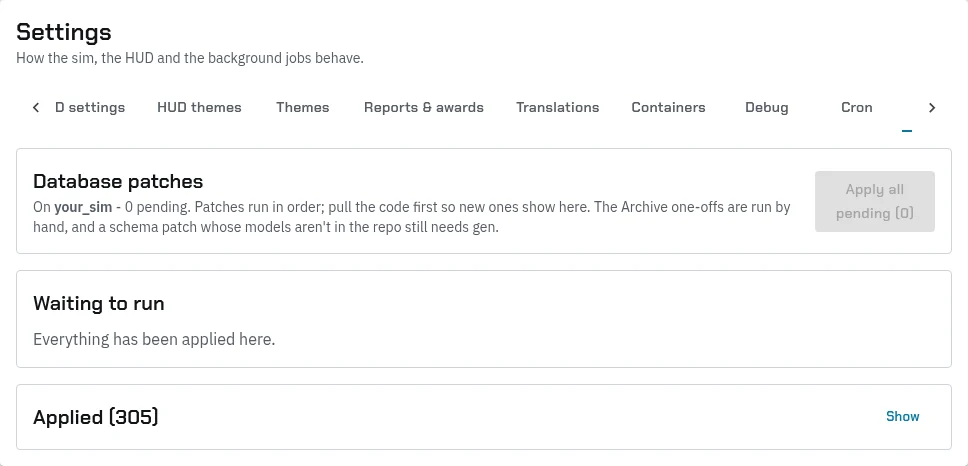
- Apply all pending runs every waiting patch in order. It stops at the first one that fails.
- View shows what a patch does and its SQL.
- Apply runs only the next one. Mark applied records a patch as run without running it, for one that was already run by hand.
- A patch marked Instance data changes your sim’s data, not only its tables. Read it before you run it.
- Changed since applied means the file changed after it ran. It isn’t run again.
Usually Black Box runs these for you. If you run them yourself, pull the new code first so the new patches show.
Discord
Server › Discord sends the system’s alerts to your Discord channels. On a new sim, a warning lists the groups the system posts to that don’t exist yet, with Create it.
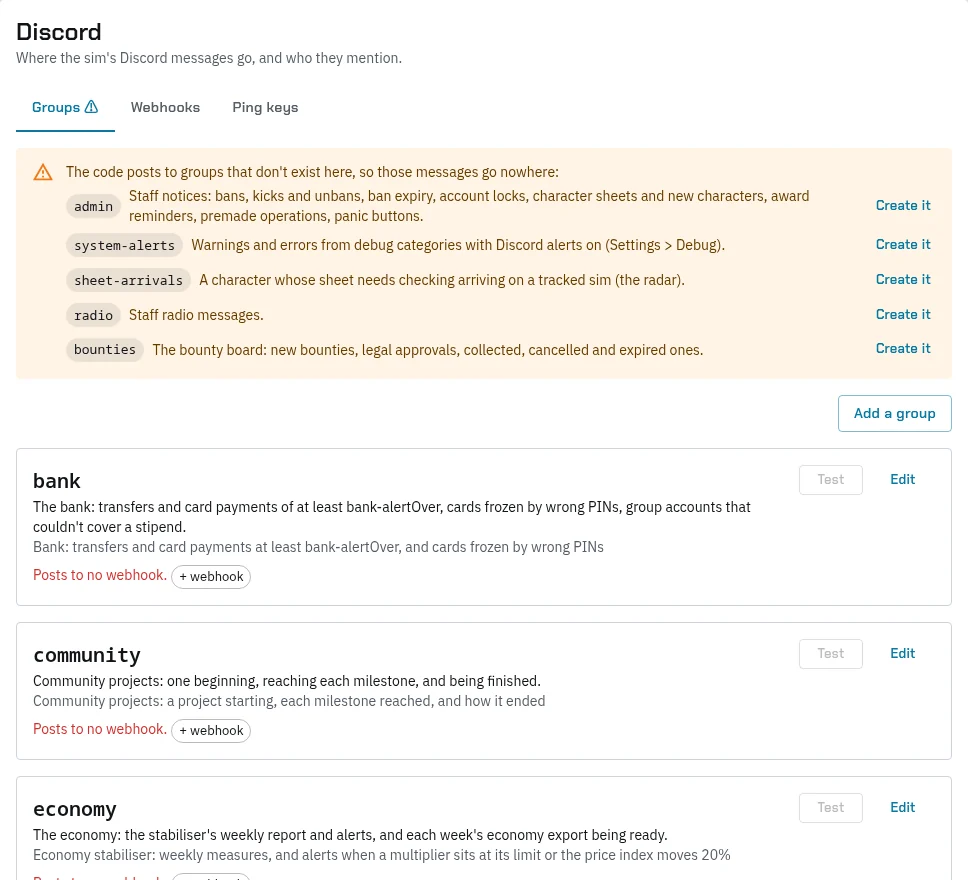
- On Webhooks, press Add a webhook for each channel: a Name and its Webhook URL, from the channel’s settings in Discord, under Integrations, Webhooks.
- On Groups, create any missing groups, then press + webhook on each to send it to a channel.
- On Ping keys, add the Discord roles to mention, by their Role ID.
- Press Test to send a test message.
| Group | What it gets |
|---|---|
admin |
Bans, kicks and unbans, account locks, character sheets, award reminders, premade operations, panic buttons |
system-alerts |
Errors from the debug categories with alerts on |
sheet-arrivals |
A character whose sheet needs checking arriving on the sim |
radio |
Staff radio |
bounties |
The bounty board |
bank |
Large transfers, frozen cards, stipends a group couldn’t pay |
events |
New events |
economy |
The stabiliser’s reports and alerts, the economy export |
lawful |
Outlawed spells cast in lawful zones |
community |
Community projects starting, reaching milestones and ending |
Auth Keys and Panic buttons
- Auth Keys makes the keys your in-world objects use to talk to the server. See In-world setup.
- Panic buttons pauses the economy or switches the server off for players, with a reason they see. See Moderation. What players see is in Crime and the law.